
How to
How to Do the I’m So Sorry Trend: Free, Step by Step (2026)
Updated
To do the I’m So Sorry trend, start with the real photo you want to reveal, create a polished version, then take back the changes one picture at a time. Finish with the original and a final confession. With the I’m So Sorry AI generator, one upload becomes five photos with editable captions and a 16-second video with music. You do not need to write a prompt or film anything.
The full story costs 30 credits. Eligible verified accounts can try one free opening-photo preview; it does not include the complete downloadable story. Here is how to choose your photo, generate the reveal and get it ready to share.
Choose a way to make your photo reveal
You can build the sequence yourself or use a dedicated template:
| Method | What you do | Best when |
|---|---|---|
| Automatic AI template | Upload one original photo, review the generated pictures and captions, then export | You want the edits and slideshow assembled in one place |
| Manual photo editing and assembly | Make the edited versions yourself, arrange them from most edited to original, then add captions and timing in a slideshow editor | You want to control every visual change and already have editing tools |
The manual route uses the tools you choose, so its cost and effort vary. The steps below use VideoMemeGenerator’s five-photo template. For the background and storytelling idea, read what the I’m So Sorry trend is.
How to do the I’m So Sorry trend, step by step
1. Choose the photo for the ending
Start with the truth, not the glamorous opening. Pick a clear, well-lit photo with one main person or pet and a visible face. Keep the outfit, accessories or other funny details in the frame. An awkward expression or unexpected costume gives the ending something worth revealing.
Our coffee costume example ends with the original below. The earlier AI photos invent a floral dress and bouquet; the coffee cup remains the last surprise.
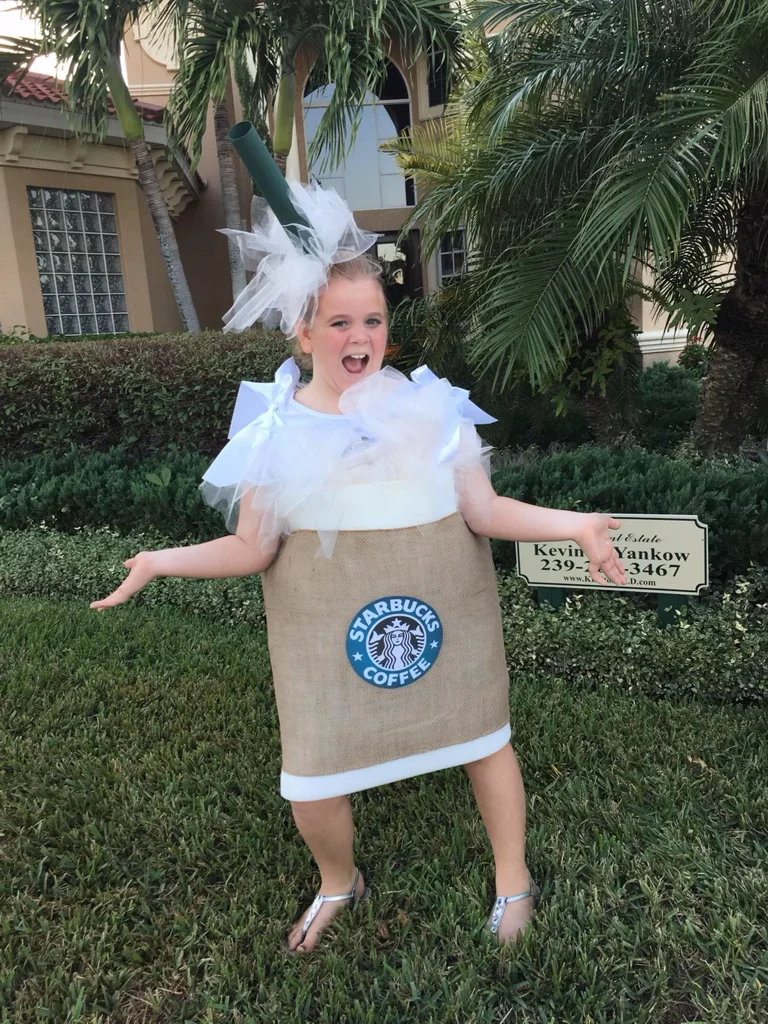
The original reveal photo in our example. Your own story starts from the photo you upload.
Use a photo you have permission to edit. JPG, PNG and WebP are supported, up to 10 MB, with each side between 300 and 6000 pixels. A cropped face alone gives the story fewer visible details to change.
2. Open the generator and upload your original
Open the I’m So Sorry photo reveal workspace on your phone or computer. Select Upload the real photo, or drag a file into the upload area on desktop. Sign in with a verified account before generating.
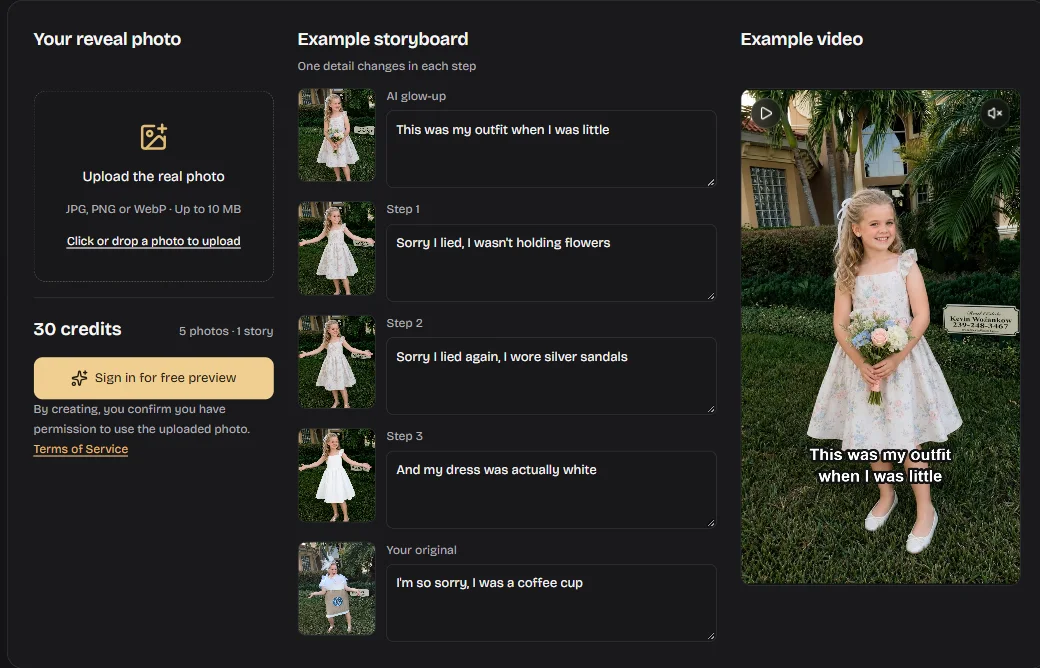
The signed-out workspace, captured October 23, 2026. It shows a read-only coffee costume example. Choose your own photo to start your story; open the screenshot to see the controls at full size.
On mobile, swipe through the storyboard to see all five photos. The example is there to explain the format; its captions are not editable. Caption editing becomes available on your own story once the preview is ready.
3. Generate the opening and reveal sequence
Review the cost before starting. With at least 30 credits, choose Generate · 30 credits to make the complete story. If your balance is below 30 credits and you have not used your free preview, the generator can make the opening photo and reveal captions first. After that preview finishes, Unlock full story lets you purchase credits if needed and continue to the middle photos.
AI analyzes your upload, creates a polished opening and plans three corrections. The first image usually takes about 30–60 seconds; a complete story usually takes about 2–3 minutes. These are estimates. Follow the stage shown in the workspace while it processes.
The playback order is:
- The polished AI opening.
- The first correction.
- A second correction that keeps the earlier change.
- The last correction before the reveal.
- Your unchanged original photo.
The generator chooses the details from your photo. It does not require you to copy a particular costume, write image prompts or recreate our example’s exact changes.
4. Edit the apologies and check each photo
Read every caption beside its photo. Keep each confession short and make it describe a change viewers can actually see. In our example, the flowers disappear before the shoes and dress change. The final coffee cup admission works because the previous captions leave it unrevealed.
Caption edits are saved to your account at no extra cost. After the full story is complete, Regenerate · 10 credits lets you try another version of one AI photo. Check the new result against the neighboring slides before exporting. The original reveal photo is not regenerated.
For all five images and the exact caption sequence, see our I’m So Sorry coffee costume example.
5. Preview, download and prepare your post
Preview the completed story with music. The five images play for 3.2 seconds each, making a 16-second vertical video. Make sure the text is readable and that the last picture reveals something the earlier slides have not already given away.
Choose Download photos · ZIP for a ZIP of five captioned JPEGs plus a captions text file, or Download music video for the video with the example music. The photos are 720 × 1280. Video export uses MP4 where supported, with WebM as a fallback. Downloads do not use additional credits.
Use the photo set for a carousel, or upload the finished video. If you adjust the sequence in another editor, keep the original last. Review the platform’s current AI-content guidance, including its labeling and likeness rules, before publishing.
Can you do the I’m So Sorry trend for free?
You can try one free polished-photo preview per verified account when your credit balance is below 30. It includes the opening image and reveal captions. The three middle photos and the completed story’s downloads require the full story, which costs 30 credits.
An account with enough credits generates the full story directly. You do not need a subscription: one-time credit packs are available alongside optional monthly and annual plans. See current credit packs and pricing.
If you already have suitable edited pictures, you can assemble your own slideshow using an editor you have access to. That is a separate workflow; it does not unlock the generator’s paid photos.
Photo and caption tips for a better reveal
- Keep a bigger surprise for the end. In the coffee costume example, the first apologies discuss flowers, shoes and a dress. None names the coffee cup before the original appears.
- Give every correction a visible subject. “I wore silver sandals” is easier to follow than an apology that does not explain what changed.
- Show enough of the scene. A clear face helps recognition, while an outfit or prop gives the edit something to work with.
- Keep the voice consistent. Short, deadpan captions can make the visual contrast carry the joke. Read the whole sequence aloud before downloading.
- Check continuity. Unexpected changes to a face, background or accessory can distract from the intended correction. Review every image, not just the opening.
What if a photo or download does not work?
My photo will not upload
Check the file format, size and dimensions against the limits above. Try a clear JPG, PNG or WebP rather than renaming an unsupported file’s extension.
I can see the opening, but the middle photos are locked
That is the free-preview state. Unlock the 30-credit full story to generate the middle images. A preview is not a completed five-photo story.
Generation is still pending
A queued or pending story is still processing. Refreshing restores the same story without charging again. If a paid generation is confirmed as failed, the credits reserved for that attempt are returned. A failed free attempt does not renew the one-time preview allowance.
My browser cannot export the video
Finish all five photos first. If video export is unavailable in your browser, open the story in an updated Chrome or Edge, or download the photo ZIP and assemble the slideshow in another editor.
Ready to make your version? Open the I’m So Sorry AI generator, choose the photo for your final confession, and build the story backward from that reveal.